Image gallery & categories
Manage your project images in one place. Reuse an image for several characters or resources and replace it everywhere when the artwork changes.
Download “The Harbour Key” example project · Mira.png · Warehouse-key.png


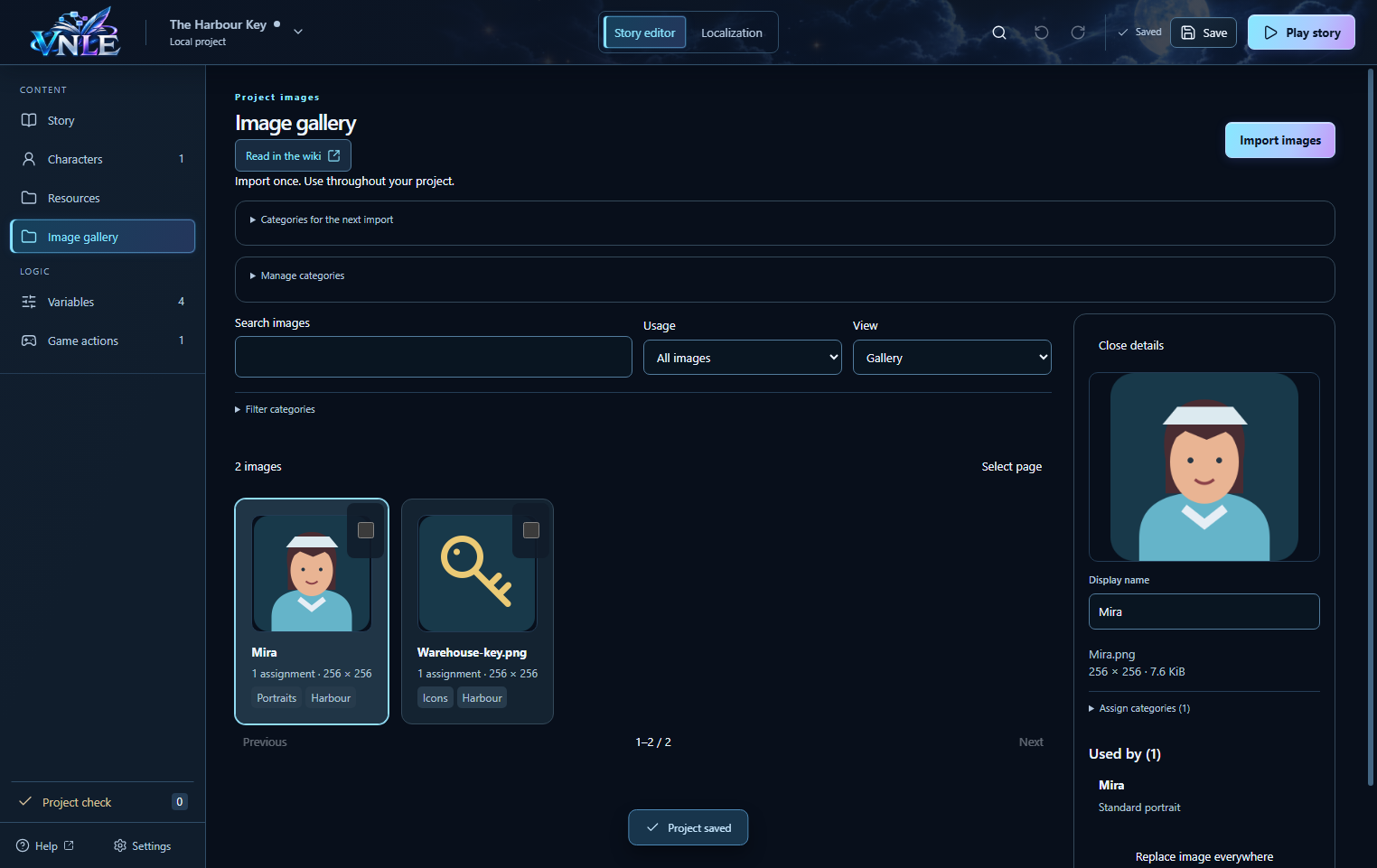
Import several images
- Open the downloaded project with “Open project” and select the project folder. Choose “Image gallery” in the left sidebar.
- Optionally open “Categories for the next import” and choose the categories to apply.
- Click “Import images” and select several files with Ctrl or Shift. You can also drag image files into the gallery.
- Check the import results. Identical image files reuse the existing entry. Invalid files are listed individually; the other images remain imported.
Supported formats are still PNG, JPEG and WebP images, up to 4 MiB and 16 megapixels per file. Originals are not automatically resized or compressed. VNLE creates smaller previews for display.
Your own categories and groups
- Open “Manage categories”. Select “Category group”, enter a name such as Region and click “Add”.
- Create a “Category” named Harbour and choose Region as its group. Categories can also be left ungrouped.
- Select one or more images using their checkboxes. Open “Assign categories”, choose categories and click “Add”. “Remove assignments” removes only the selected categories from those images.
- Open “Filter categories”. Select several categories and choose “All selected categories” to show, for example, only Portraits from Harbour. “Any selected category” shows images belonging to at least one selected category.
You choose every name. The example uses Image type → Portraits / Icons and Region → Harbour. Deleting a group keeps its categories ungrouped. Deleting a category keeps its images.
Assign an image
- Open “Characters”, select Mira and find “Portraits & emotions”.
- Select “Standard” or an emotion, then click “Choose from image gallery”. Search or filter and click the image you want.
- For items and locations, the same selector appears beside their presentation image.
“Remove assignment” removes the image from this one place after confirmation. The image stays in the gallery. An emotion without its own image uses the standard portrait.
Replace artwork everywhere
- Select an image in the gallery. “Used by” lists its direct assignments, such as Mira → Standard portrait or Warehouse key → Item image. Click an assignment to open that content.
- Click “Replace image everywhere” and choose the new file. Compare the previews and check the notice if the aspect ratio changes.
- Confirm with “Replace everywhere”. All assignments, the display name and categories are kept. Use Undo to return to the previous artwork.
Delete images
Before deleting, VNLE lists the affected characters, emotions, resources and other direct assignments. A thousand dialogues featuring Mira do not appear as a thousand image uses. Confirm only when you want to remove the images and those assignments. The characters and resources themselves are kept.
Organize characters with your own groups
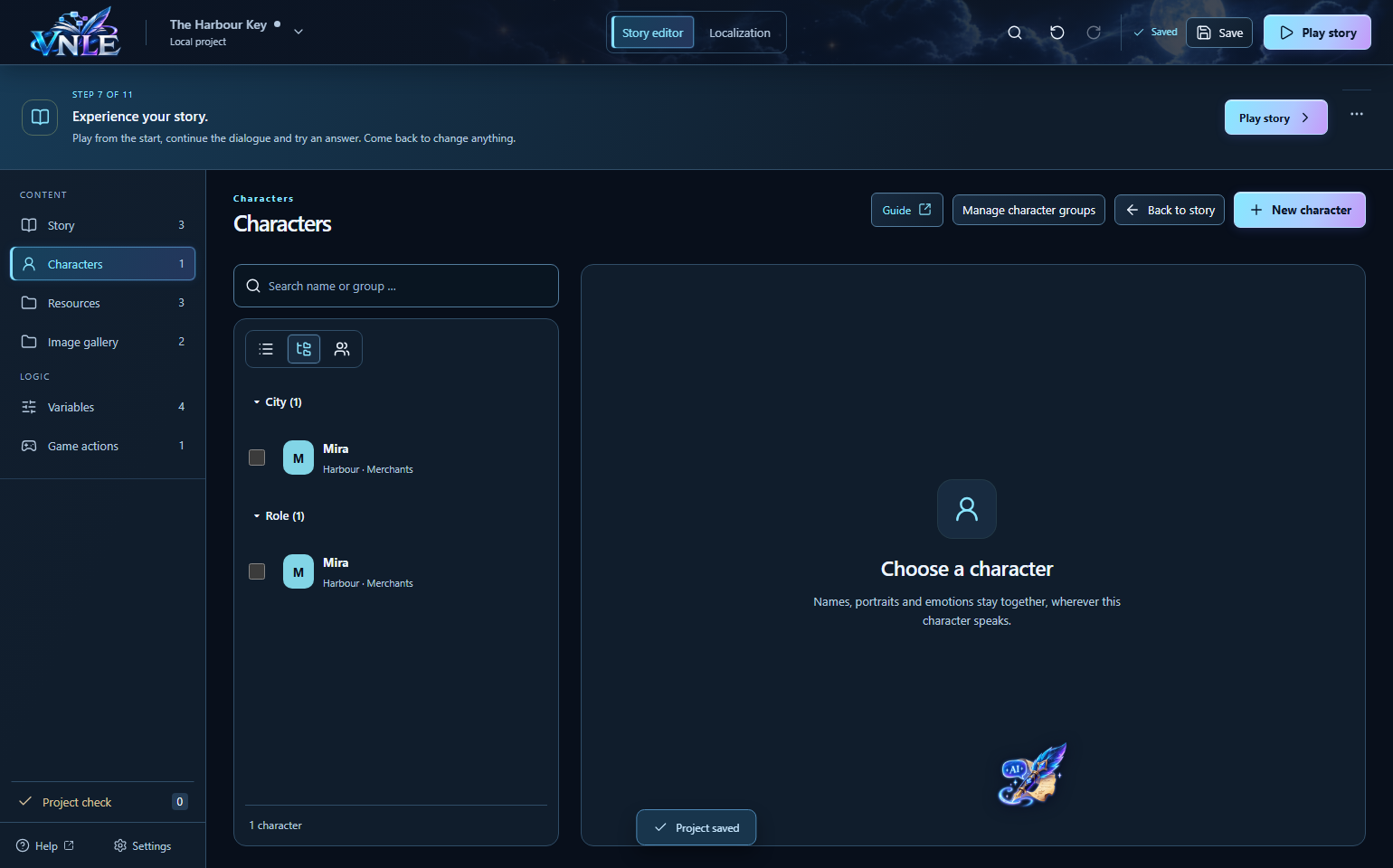
- Open “Characters” → “Manage categories”. Character groups and categories are independent of those in the image gallery.
- In the example, Mira belongs to both City → Harbour and Role → Merchants. Use the checkboxes to assign categories to several characters together.
- Choose City under “Group by”. Under “Filter categories”, also select Merchants. You now see merchants grouped by city.
- Expand or collapse categories individually or all together. Search temporarily opens matching groups. “No grouping” returns to one list.
A character with several categories can appear in several groups but remains the same character. The total counts each character once. Search, filters, view and expanded groups are remembered for this project on this computer.