AI assistant & story knowledge
The AI assistant in VNLE
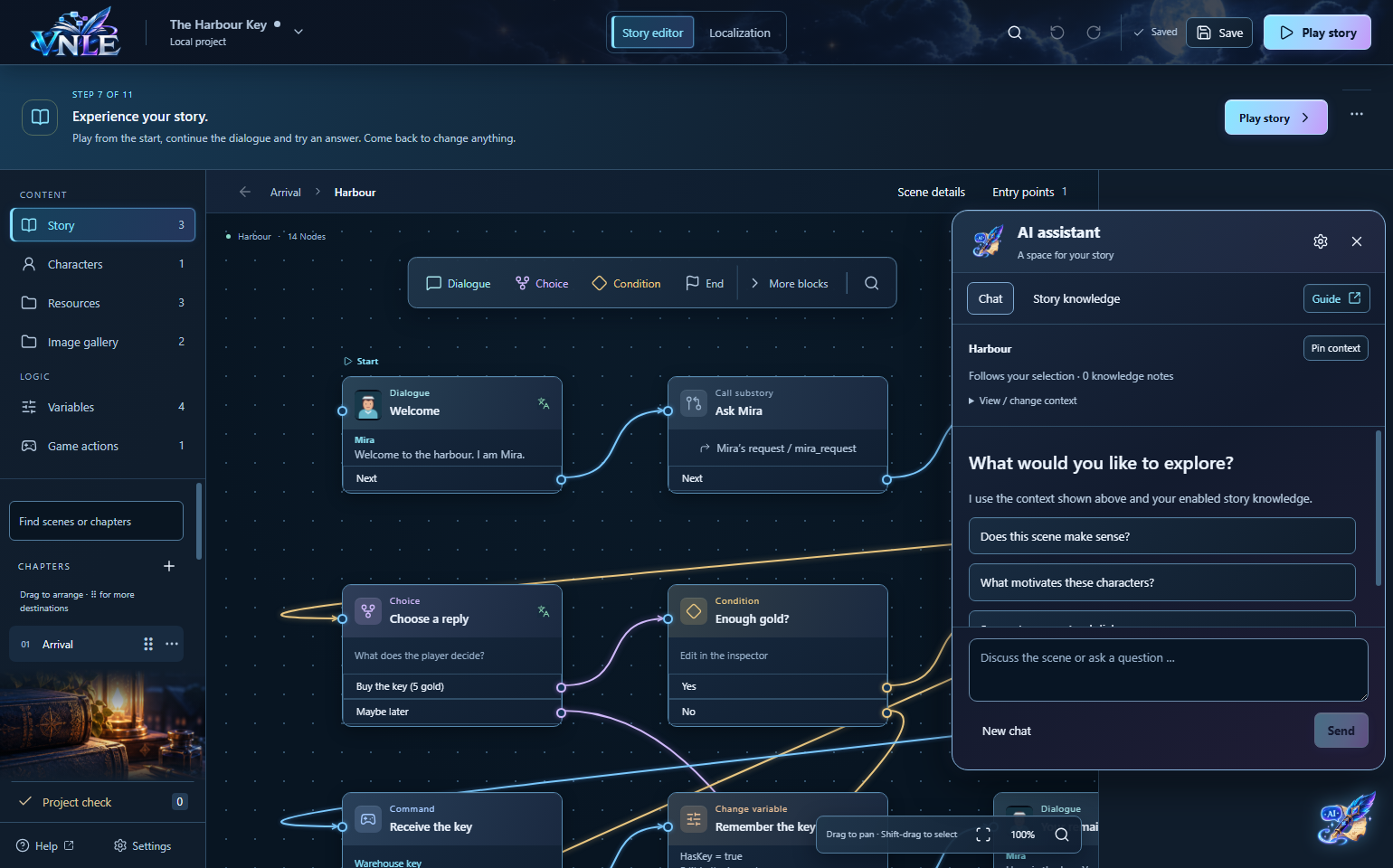
The floating quill icon opens your story companion. Discuss dialogue, characters, resources and scene structure while continuing to work in the editor. The chat covers only the area where you place it; it does not lock the editor.
Connect your ChatGPT account
- Open a project, then go to Settings → AI assistant at the bottom left.
- Turn on Enable AI assistant. Read the explanation: your question, chosen context, enabled knowledge notes and recent chat messages are shared with OpenAI only when you send.
- Click Sign in with ChatGPT and finish signing in in the browser. Return to VNLE. Once Connected to ChatGPT appears, close Settings and open the assistant.
VNLE includes its connection component. You do not select a program or need an API key. Always keep the complete extracted VNLE folder together.
ChatGPT sign-in uses the Codex access available in your plan. VNLE does not set up separate API billing. This is not unlimited free usage: plan limits apply, and existing additional credits or workspace billing may matter. VNLE does not buy credits or automatically switch to the API. Check your allowance in ChatGPT. Current plans and limits · ChatGPT and API authentication.
Place the window where you work
The icon starts in the bottom-right corner. Move the icon while chat is closed. With chat open, drag the header to move both together; the icon stays attached to the window. The gear opens AI settings: choose Small, Standard or Large for the icon and Standard or Large for chat. Focus the icon or header and use arrow keys to move them. Reset position returns both to the bottom right.
How does the AI know my context?
The top of the chat shows its current context. In Story this is the open scene, its text and connections. A selected dialogue becomes the focus. For characters and resources, VNLE includes the open entry and matching uses. Images are not uploaded; gallery context concerns image records such as names and assignments.
Pin context keeps the current subject while you look elsewhere. Unpin context follows your selection again. Under View / change context, choose Story, add other scenes or characters and inspect the included entries. Large stories are bounded; a notice appears when context is shortened. Select individual scenes for detailed review. The AI knows only the content actually supplied.
Each message shows its context at the time. The last twelve messages are included for follow-up questions. Minimizing keeps the chat, but chat history is not saved as a project file. Switching projects or choosing New chat begins a new conversation.
Story knowledge: background for the AI
- Open Story knowledge in the assistant and click Add knowledge.
- Give it a title such as World rules or Mira’s voice. Write or paste your text into the note.
- Use Include to choose which notes are sent. Click Save. Entries are saved with the project and collapsed. Click a title to open it again. Use Add more knowledge for another entry.
Note drafts are saved locally. Saving updates the project and AI context. Applied story knowledge belongs to the project: team sync and project ZIP include it. All team members should use the current VNLE version so the project format with story knowledge is recognized. Your ChatGPT sign-in does not belong to the project. Use background notes that your team may read.
Try it with The Harbour Key
Open the real harbour example. It contains Mira, the warehouse key, the Gold variable and a choice to buy for five gold. These questions need no export: the built-in assistant reads the chosen context directly from the open project.
- Open the harbour scene: “Explain the routes after the purchase choice. What happens with insufficient gold?”
- Select Mira’s greeting: “Suggest a more natural greeting. Keep Mira friendly and practical.”
- Open Mira in Characters: “Is her voice consistent across the included dialogue?”
- Open the warehouse key in Resources: “What role does this item play in the included uses?”
- Add a Writing style note: “Short sentences, friendly, no modern slang.” Then ask: “Which dialogue does not yet fit this style?”
Review and apply suggestions
Answers do not change your project. Dialogue proposals show the original, replacement and reason. The arrow icon at the top right of a proposal takes you to the node and briefly highlights it. Apply replaces that text; Discard leaves it unchanged. Review multiple proposals individually. Undo can reverse an applied change. If the project changed meanwhile, request a fresh proposal. AI can be wrong; continue testing story logic in Preview.
Hide, disconnect and troubleshoot
- Turning off Enable AI assistant hides the icon and chat window. The account connection remains.
- Disconnect signs VNLE out of ChatGPT. Story knowledge stays in the project.
- No browser or interrupted sign-in: check your connection and click Sign in with ChatGPT again. If your workspace restricts Codex access, contact its administrator.
- Allowance exhausted: wait for your plan’s allowance to reset. VNLE does not switch to paid API requests.
- Missing connection component: extract the full current VNLE build again; do not copy only the EXE.
Use an external AI for game integration
Give the AI direct links to the handbook. The request below already includes the relevant pages and real example data. Add your engine, your goal and your own project files.
1 · Prepare your files
- Export your project from VNLE as a ZIP. For game integration it must include story.json and the required images.
- Note your engine version and target platform, such as Windows or browser. Briefly describe what should trigger the conversation.
- Attach your export and, if relevant, your existing dialogue or inventory code. The wiki example data does not replace your own export.
2 · Copy this request
Replace the text in square brackets. All handbook URLs are included when you copy.
I use [engine and exact version] on [target platform].
My goal: [e.g. speak to Mira, open a dialogue box and add the key to inventory].
My project uses [language / existing dialogue and inventory systems].
I am attaching my VNLE export as a ZIP, or as story.json with assets.

First read this documentation and the real example files:
Wiki: https://laubneralexander.github.io/VNLE-wiki/
Understand files and JSON: https://laubneralexander.github.io/VNLE-wiki/en/files.html
Complete JSON field reference: https://laubneralexander.github.io/VNLE-wiki/en/format.html
JSON Schema: https://laubneralexander.github.io/VNLE-wiki/story.schema.json
Connect dialogue and game: https://laubneralexander.github.io/VNLE-wiki/en/integration.html
Complete walkthrough: https://laubneralexander.github.io/VNLE-wiki/en/walkthrough.html
Real example data: https://laubneralexander.github.io/VNLE-wiki/examples/harbour/story.json
Example IDs: https://laubneralexander.github.io/VNLE-wiki/examples/harbour/guide-map.json
Example UI source: https://laubneralexander.github.io/VNLE-wiki/examples/harbour/demo.mjs
Documentation map for AI assistants: https://laubneralexander.github.io/VNLE-wiki/llms.txt

Use the IDs and fields in my export. IDs in guide-map.json belong only to the teaching example. Do not invent JSON fields. If you cannot read the links or my files, tell me exactly what content to provide.

Build the complete integration with my game:
- Start dialogue, show the speaker name and portrait, resolve text in the selected game language and advance with Continue.
- Show replies as buttons. Run conditions, variable changes, jumps, calls and returns correctly. Support every node type present in my export.
- Display placeholders using their bound values. Fall back to source text when a translation is missing. Changing language must not reset conversation progress.
- Connect game actions to my game systems. Await their result and follow the matching outcome. In The Harbour Key, give_item connects dialogue to inventory; rejected delivery refunds the purchase price.
- On End, close the dialogue box and restore game controls.
- Save and restore dialogue state, variables and inventory together.

Explain each setup step simply: which file to create where, the complete code to paste into it, and which fields or events to connect in the engine. Link the handbook sections used. Ask for missing details about my game.

Check success, the second reply, insufficient gold, a rejected game action, language switching, missing translations, placeholders and loading a save. State the expected result of each test. Distinguish tests actually run from checks still outstanding.
Included sources
- Wiki
- Understand files and JSON
- Complete JSON field reference
- JSON Schema
- Connect dialogue and game
- Complete walkthrough
- Real example data
- Example IDs
- Example UI source
- Documentation map for AI assistants
3 · Try the result
First have the AI show you how to run the game and speak to Mira. Then try the example routes: buy, decline and start with too little gold. Change language and load a saved game. If something fails, give the AI the exact error and describe what you clicked.